Capture and explain
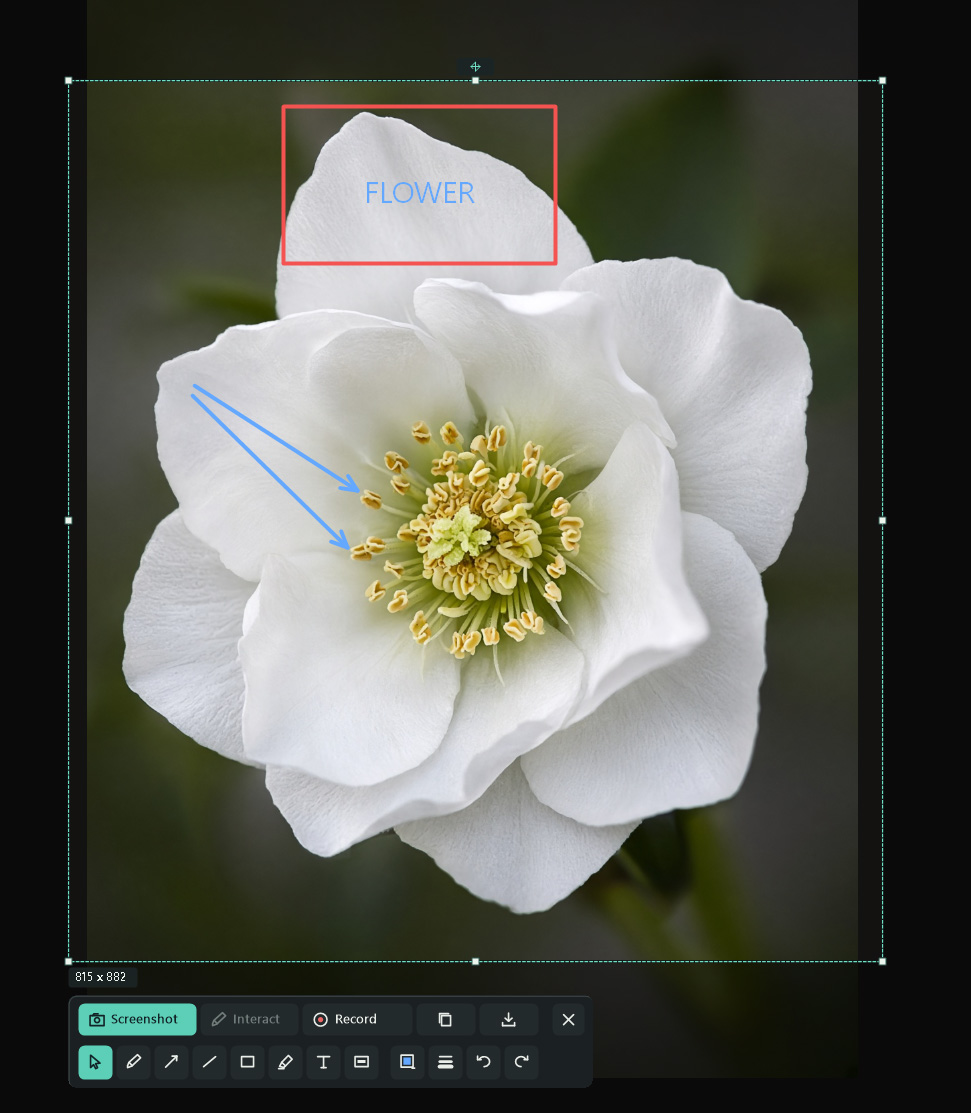
Freeze a screenshot or draw over a live desktop. Select an area and adjust the frame, then add text, arrows, lines, shapes, a pen or marker. Move marks and undo or redo as you work.
- Capture an area, a monitor, or the virtual desktop
- Copy the result or save it as PNG or JPEG
- Use solid color redaction to cover details before exporting
Record a GIF
Record the selected area while interacting with the app underneath. Add strokes or apply text during recording, then preview the GIF before saving or discarding it. Compression, frame rate, and countdown are available in Settings.
GIF has a limited color palette, so fine gradients can lose detail. Recordings use local temporary storage and can stop when space is low.
Made to stay out of the way
No installer or account is needed. Drawscr keeps its preferences in Drawscr.ini beside the executable; place it in a writable folder if you want to save them. Captures stay local and are not uploaded by Drawscr.
Free for personal and commercial use under the Drawscr License. Selling the software or integrating it into another product requires permission; read the license for the full terms.
Get started
- Download the portable executable and open it on 64-bit Windows 10 or 11.
- Press Print Screen, or choose a capture action from the launcher or tray.
- Select an area, annotate it, then press Ctrl+C to copy or Ctrl+S to save.
 Whimsea
 Daybreak
 Cohort Diagnostics